QR codes for small business: 9 practical ideas
Nine ways a small business can use QR codes: what each code should open, where to put it, what to print next to it, and how to tell if it works.
A QR code helps a small business when it saves a customer a step they would otherwise skip: leaving a review, saving your number, messaging you, seeing your menu. Pick one action per code, put the code where people stand and wait, and say in a few words what happens when they scan it.
Which QR code ideas actually bring customers?
The ones that lead to something a customer already wants to do. Nine that suit a shop, a café, a salon or a trade:
| Idea | What the code opens | Where to put it |
|---|---|---|
| Google reviews | Your Google review form | Counter, receipt, bag, invoice |
| Save your number | Your contact, ready to save | Business card, van, shop door |
| Order by message | A WhatsApp chat with you | Window, flyer, packaging |
| Menu or price list | A page or PDF of your prices | Table, window, counter |
| Follow you | Your Instagram or Facebook page | Counter, receipt, bag |
| Book a visit | Your booking page | Door, business card, flyer |
| Guest WiFi | Your guest network, joined in one scan | Café table, waiting room |
| Product details | Care, ingredients or how to use it | Label, box, tag |
| A flyer offer | The page with the offer | Poster, leaflet, mail |
A review code works best when you also ask out loud, and Google's rules matter: our guide on how to get more Google reviews with a QR code explains them. A contact code puts your name, phone and email into the customer's phone, so they find you again without searching.
What should the code open?
One thing, and a page that works on a phone. A code that opens your home page asks the customer to search for what they came for, and many will not. Point the review code at the review form, the order code at the chat, the menu code at the menu.
For a WhatsApp chat, the link is https://wa.me/ followed by your number with its country code, digits only: no plus sign, no spaces, no leading zero.
Then write the action next to the code: "Scan to leave a review", "Scan to save our number", "Scan to see today's menu". A code with no words around it is easy to ignore.
Do you need a dynamic QR code?
Usually not. A plain (static) QR code holds the link itself. It has no scan limit and does not expire. A dynamic code goes through the server of the service that made it: you can change where it leads after printing, but it works only as long as that service keeps redirecting. Our guide do QR codes expire? explains the difference.
The one real limit of a static code is that it cannot change where it leads once it is printed. The simple answer is to point it at a page you control: a page of your own website, or an online menu you keep up to date. You change the page as often as you like, and the printed code stays right.
How can you tell if a QR code brings customers?
A static code does not count scans, but your website can count the visits it sends. If you use Google Analytics, add three tags to the link before you make the code:
https://example.com/offer/?utm_source=flyer&utm_medium=qr&utm_campaign=spring
Visits from that code then show up in the Traffic acquisition report under that source and campaign. Use a different utm_source for each place (flyer, counter, van) to see which one works. A longer link makes a denser code, so print it a little larger and test it.
Without a website, put an offer on the flyer that exists only behind the code, then count how many people ask for it. Or ask new customers how they found you.
Where should you put it, and how should it look?
Where people have a free minute: in the queue, at the table, at the till, in the bag they carry home. Then:
- Print it black on white, with a blank white margin all around it.
- Make it big enough for the distance. A common rule of thumb: the code is about a tenth as wide as the scanning distance, so 10 cm for a sign read from 1 m. On a business card, 2 cm is the floor for a short link and about 3 cm for a full contact.
- Write the address in plain text under the code, for people who cannot or will not scan.
- Scan a test print with two different phones before you print a hundred.
Can customers scan it without an app?
On most phones, yes. On an iPhone, the Camera app reads a QR code and shows a link to tap; there is also a code scanner in Control Center. Many Android phones do the same with the camera, or with Google Lens. Nobody needs to install an app.
How do you keep your codes trustworthy?
Some scammers stick their own QR code over a real one, and the US Federal Trade Commission has warned about it. Check your posters and stickers from time to time, and prefer a code printed on the item itself over a loose sticker.
Two rules for review codes. Google does not allow rewards for reviews, such as a discount or a free coffee, nor asking only happy customers. It also says businesses should not pressure customers to review while on the premises. Ask everyone the same way, and let them scan now or later.
An example: a small bakery
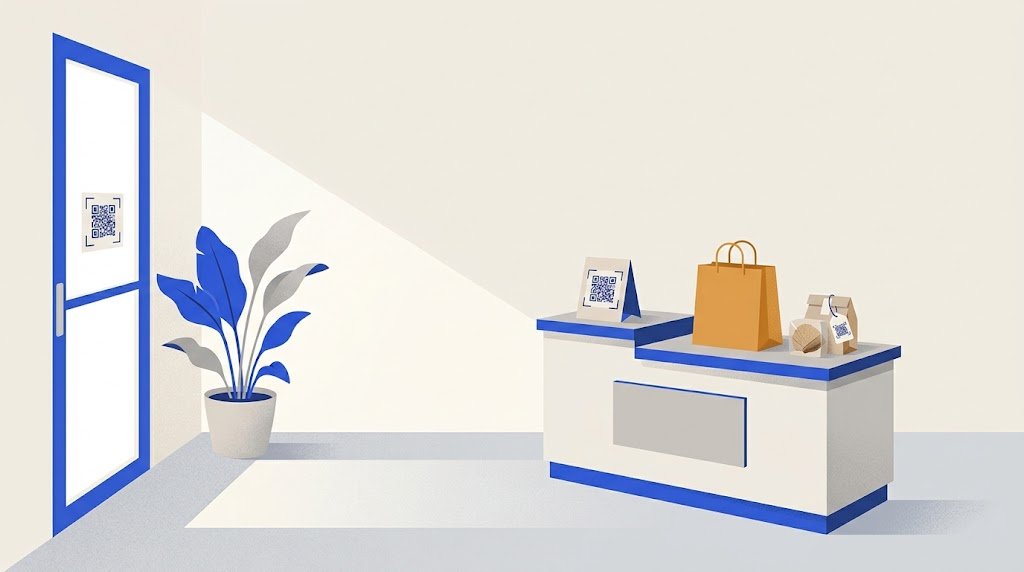
A bakery puts three codes to work. On the counter, a small card: "Enjoyed it? Scan to review us on Google." On the paper bag, a code with "Order a cake by WhatsApp" that opens a chat with the shop. On the door, for people who pass after closing, a code with "Hours and cake orders" that opens a page of the bakery's website. When the hours change, the owner edits that page and the door sticker stays.
How do you make one?
Open the QR code generator, choose Link and paste the address, or choose Contact (vCard) and type your name, phone and email. Download the code as a PNG or SVG image. There is no sign-up, and the code has no scan limit. Test it, then print it.