How to scan a QR code on a laptop or PC
Scan a QR code on a laptop or PC: the Windows Camera app, Snipping Tool, Chrome on Windows or Mac, and how to join WiFi from a WiFi QR code.
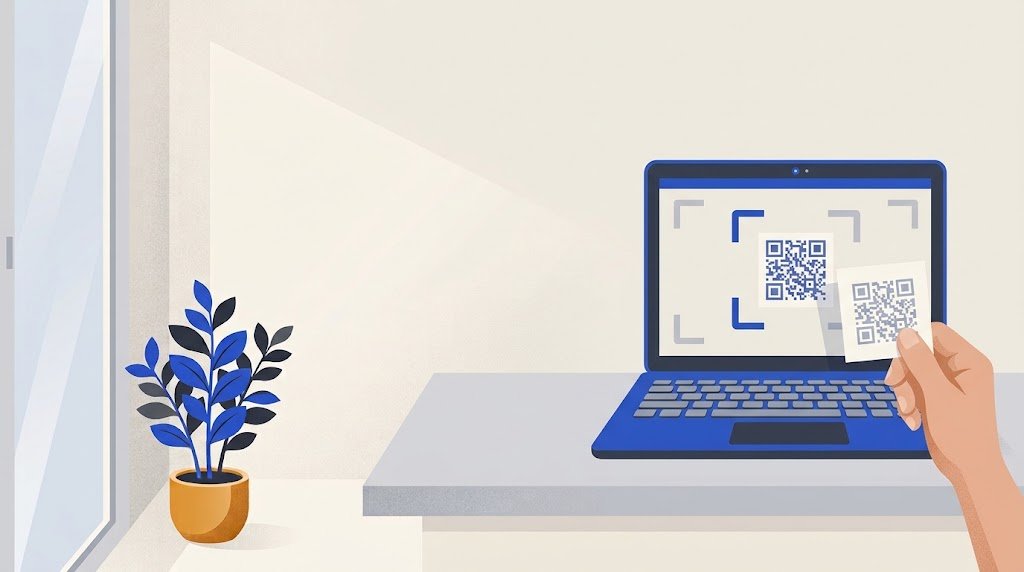
To scan a QR code on a Windows laptop or PC, open the Camera app, select the Barcode button and hold the code in front of the webcam: the link appears at the bottom of the window. If the code is already on your screen, on Windows or on a Mac, Google Lens in Chrome reads it without a webcam.
Which method should I use?
| Where the code is | Windows | Mac |
|---|---|---|
| On paper, a sign or a phone | Camera app, Barcode mode | Your phone, or a photo of the code opened with Lens |
| On a web page | Google Lens in Chrome, or Snipping Tool | Google Lens in Chrome |
| In a saved picture or a PDF | Snipping Tool, or Google Lens | Google Lens in Chrome, or google.com |
How do I scan a QR code with my laptop camera on Windows?
- Open Start, type Camera and open the app.
- Make sure the Barcode button is selected, on the right side of the window.
- Hold the code in front of the webcam until it is sharp. The app reads it by itself.
- A link appears at the bottom of the window. Select it to open the website.
Microsoft gives the same steps for Windows 10 and Windows 11. If your device has two cameras, the Change camera icon at the top right switches between them.
How do I scan a QR code that is on my screen?
A webcam cannot film its own screen, so read the picture instead.
With Google Lens in Chrome (Windows or Mac):
- Right-click the QR code.
- Choose Search with Google Lens.
- A panel opens beside the page. It shows what the code holds and, when it is a link, a button to open it.
If the code is not a separate picture, as in a PDF, right-click an empty part of the page, choose Search this tab with Google Lens, then drag a box around the code. Chrome's help says Lens needs Google as your default search engine, and that searching the tab sends a screenshot of the page to Google. Avoid it on a page that shows private details.
With the Snipping Tool (Windows 11):
- Open Snipping Tool and select New.
- Drag a box around the code.
- Select Text actions at the top of the window.
- The tool picks out the QR code and its link. Click the link to open it.
Microsoft first gave this QR code detection to Windows Insiders in 2024. If Text actions shows no link, update the Snipping Tool from the Microsoft Store, or use Chrome.
How do I scan a QR code on a Mac?
Apple's help describes no way to scan a QR code with a Mac's camera, so the way depends on where the code is:
- On your screen or in a saved picture: use Google Lens in Chrome as above. Without Chrome, go to google.com in any browser, click the Search by image icon in the search bar and upload the picture.
- On paper: the quickest way is your iPhone or Android phone. To get the link on the Mac, send it from the phone, or send a photo of the code and use Lens.
How do I connect my laptop to WiFi with a QR code?
On Windows 11, the Camera app does it:
- Open the Camera app and switch to Barcode mode.
- Point the webcam at the WiFi QR code.
- Select the link that appears. Settings opens.
- Confirm that you want to add and connect to the network. You can also choose whether the laptop joins it by itself when it is in range.
Microsoft describes this for Windows 11 only. On Windows 10, a Mac, or a PC without a camera, read the code's text and type the password. A WiFi code holds a short line of text like this:
WIFI:T:WPA;S:CafeGuest;P:sunflower42;;
The network name comes after S: and the password after P:, each up to the next semicolon. A backslash in front of a sign such as ; or : is not part of the password. Pick that network in your WiFi menu and type the password. Lens sends the picture to Google, so for a private network, asking for the password may be simpler.
To make one for your guests, see how to share WiFi with a QR code.
Why will my laptop not scan the QR code?
- No Barcode button in the Camera app: update the Camera app from the Microsoft Store.
- The camera stays black: in Settings, open Privacy & security (Privacy on Windows 10), then Camera, and check that camera access is on. Close any video call that is already using the webcam.
- The webcam sees the code, nothing happens: add light, avoid glare, hold still, and show the whole code with its white border.
- The code is tiny on screen: zoom in (Ctrl and +, or Cmd and + on a Mac) before you use Lens.
- Lens shows text but no link: the code holds text, a contact or a WiFi network, not a web address.
- Not even a phone reads it: the code itself is too small, too pale, damaged, or has no white margin.
Some codes on a computer screen are meant for a phone, such as the WhatsApp Web code, which you scan from the WhatsApp app. For phones, see how to scan a QR code on iPhone and Android.
Is it safe to scan a QR code on a computer?
A QR code often holds a link, so treat it like any link: read the address before you open it, and type no password or card number on a page a code opened unless you trust whoever put the code there. An online scanner site receives the picture you upload, so keep private codes off it.
How do I make a QR code that a laptop reads easily?
A plain, high-contrast code reads best. The vCardGen QR code generator makes a black code on white, with its white margin, for a link or a contact, as a PNG or an SVG, with no account. The code holds your link itself, so it has no scan limit and never expires. To test your laptop, make a code for a site you know and read it with Lens, then with the webcam from your phone's screen.