How to Get More Google Reviews With a QR Code
Get more Google reviews with a QR code: find your review link, print a clear sign, ask every customer the same way, and avoid review gating.
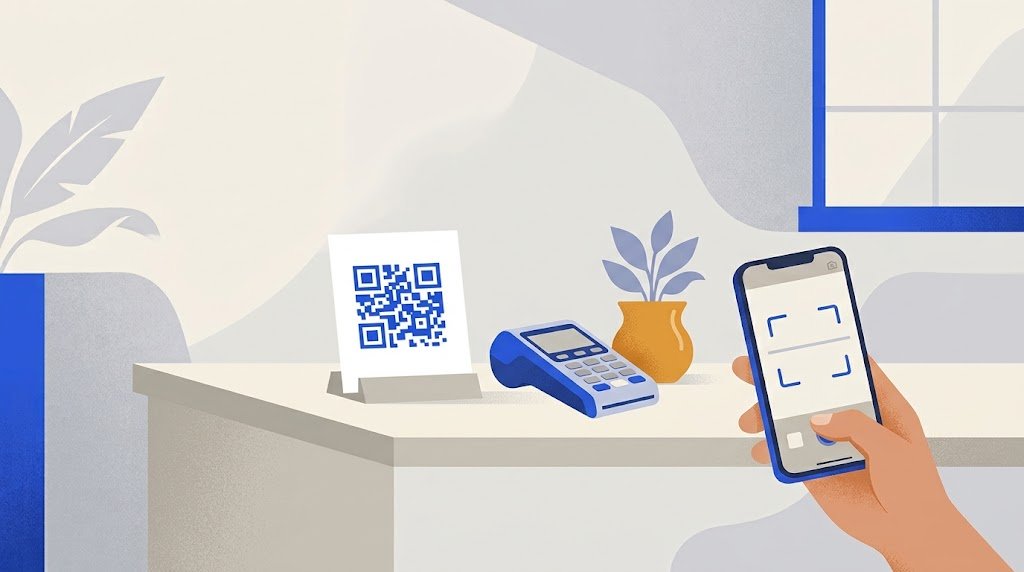
To get more Google reviews with a QR code, put a code that opens your Google review form where customers stand and wait, and ask every customer, out loud, to scan it. The honest part matters as much as the code: Google forbids asking only your happy customers, so the same request has to go to everyone.
Where do I find my Google review link?
Google gives you the link, and a QR code for it, in your Business Profile:
- On a computer, open your Business Profile while signed in to the Google account that manages it.
- Choose Read reviews, then Get more reviews.
- Copy the link, or save the QR code: right-click it and choose "Save image as".
Google's help says the QR code can only be made in a computer browser, not on a phone. If you do not see the QR code on your phone, that is why. The button names can also change over time: if you do not see them, look for an option to ask for or get reviews.
Scan the code yourself before you print anything. It should open the review box of your business, not a search page or a map of the whole town.
What is review gating, and why does it break Google's rules?
Review gating means sorting customers before they reach Google. The most common form is a page that asks "How was your visit?" with stars. Four or five stars lead to Google; one to three stars lead to a private form. It looks like customer service, but it means only happy people are asked to review you in public.
Google's policy for content on Maps says businesses may not "selectively solicit positive reviews from customers", and may not discourage negative reviews. A gated page does both.
The difference is easy to see side by side:
| Gated (against the rules) | Honest |
|---|---|
| Asks for a rating first | Asks for nothing first |
| Shows Google only to happy customers | Shows Google to everyone |
| Sends unhappy customers to a private form instead | Offers a private message beside Google, never instead of it |
| Staff hand out the code after a compliment | Staff offer the code to every customer |
Can I offer a discount or a gift for a review?
No. Google lists payment, discounts, free goods and free services in exchange for reviews as fake engagement, and strictly prohibits it. That includes a "free coffee for a review" card and a prize draw for people who post. It also covers asking for a review to be changed or removed in return for something.
You can thank people. You cannot pay them, in cash or in kind.
What should the sign say?
Keep it short and neutral. A good sign has:
- the name of your business, so the customer knows the code is yours;
- one plain sentence, such as "Scan to leave us a review";
- the code, big enough to scan from where people stand;
- one line that says how: "Point your phone's camera at the code".
Avoid words that ask for a good review ("Loved it? Give us five stars!"). The request should work the same for someone who had a bad evening.
Where should I put the QR code?
Where people have a free minute and a free hand:
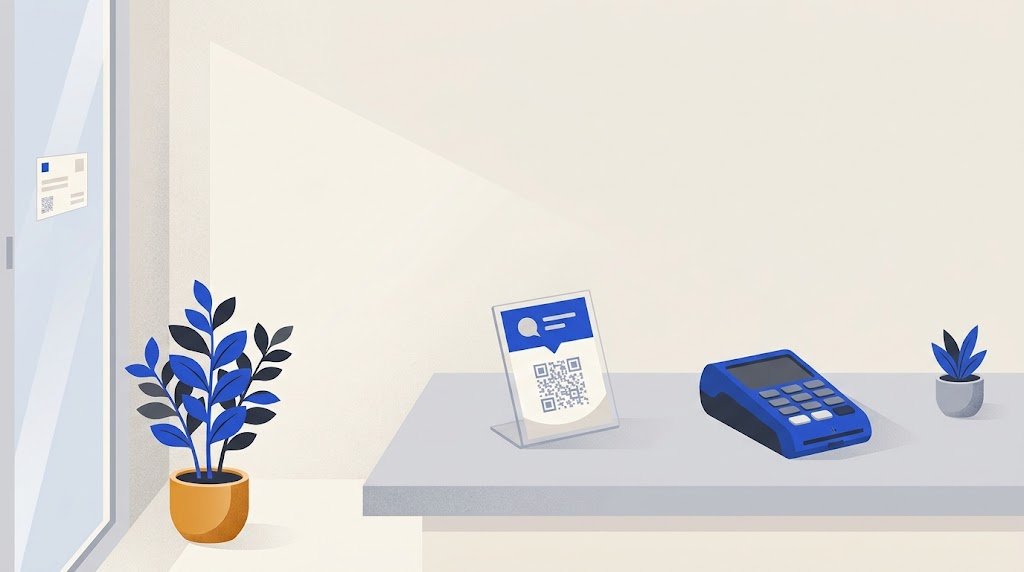
- the counter, next to the till or the card machine;
- the table, on a small stand, in a restaurant or a café;
- the receipt or the bill folder;
- the bag, the box or the invoice, for a shop or a craftsman;
- the door or the waiting room, for a salon or a practice.
Put it at eye level, or on the surface where people already look.
When and how should I ask?
Ask at the end, when the service is finished, and ask everyone the same way. A simple sentence is enough: "If you have a minute, a Google review helps us a lot. The code is right here."
Two details help more than people think:
- Say what it takes. Leaving a Google review needs a Google account: Google does not accept anonymous reviews, and the review shows the name on the writer's profile. If someone asks, tell them so.
- Do not wait for a compliment. If staff only point to the code after praise, that is gating by hand. Make it part of every goodbye.
What about customers who are not happy?
They will sometimes leave a low review, and that is allowed. What you control is the answer. Once your business is verified, Google lets you reply to each review; Google checks the reply, then posts it publicly under the review. A calm, specific reply ("You are right, the wait was too long on Saturday; we now have a second person on Saturdays") is there for every future customer to read.
Some unhappy customers would rather tell you directly than post in public. Giving them a private way to write to you is fine, as long as it sits beside the Google option for everyone, not in front of it for some. That is how we read Google's rule: it is about who gets asked, so the same two choices for every customer, with Google first, sort no one. Google does not publish a list of approved page layouts, so keep it simple and keep Google in plain sight.
Google's own code or a review page?
Google's QR code is free and opens the review form directly. For many businesses it is all they need.
A review page in front of it adds a few things. The vCardGen Google review page is free and shows every customer the same two buttons: Leave a Google review first, which opens your own Google review link, and Tell the owner privately, a short message kept in your account. There are no stars and no questions before Google. You can print a ready sign from your account, see how many times the code was scanned, and change the page later while the printed code stays the same. Putting the page online needs a sign-in by a code sent to your email.
Whichever you use, the code itself is the easy part: if you want to know whether a printed code can stop working one day, see do QR codes expire. The reviews come from asking, every customer, every day.