How to scan a QR code on iPhone and Android
Open the camera, point it at the code, tap the link. How to scan on iPhone and Android, from a screenshot, and what to do when the code will not scan.
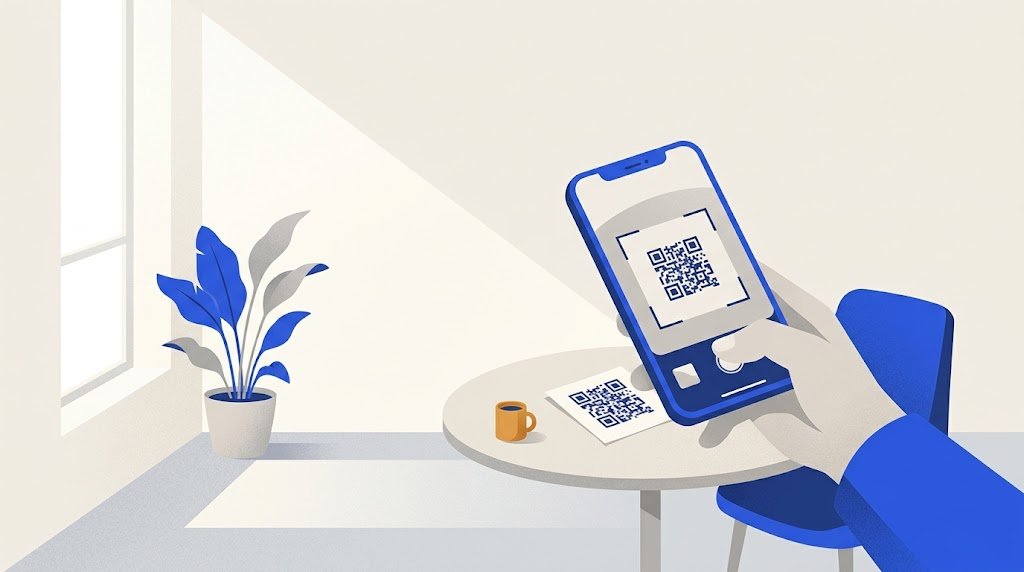
To scan a QR code, open your phone's Camera app, point it at the code and tap the link that appears on the screen. You do not need to take a photo, and on most iPhones and Android phones you do not need a separate app.
How do I scan a QR code with an iPhone?
- Open Camera.
- In Photo mode, hold the iPhone so the whole code sits inside the frame.
- Tap the link that appears at the bottom of the screen.
There is a second way: the Scan Code control in Control Center. Open Control Center, tap the scanner and point it at the code. If you do not see it, touch and hold an empty area of Control Center, tap Add a Control, then pick Scan Code. The scanner has a flashlight button, which helps in a dark restaurant or car park.
How do I scan a QR code on Android?
Android phones are made by many companies, so the menu names change from one phone to another. These three ways cover most of them:
- The Camera app. Open it, point it at the code and wait a moment for a link or a bubble to appear, then tap it. On a Pixel, scanning depends on Camera scan suggestions (in the camera's settings, under More settings). On a Samsung Galaxy, use Photo mode; if nothing happens, open the camera's settings and turn on Scan QR codes.
- The Quick Settings tile. Swipe down from the top of the screen and tap Scan QR code. If it is not there, swipe through the tiles or tap the pencil icon to add it.
- Google Lens. Tap the Lens icon in the Google search bar or the Google app, and point the camera at the code.
Do I need an app to scan a QR code?
Usually not. The camera of a recent iPhone or Android phone reads QR codes by itself. If yours does not, Google Lens does the same job, and it also works on an iPhone inside the Google app.
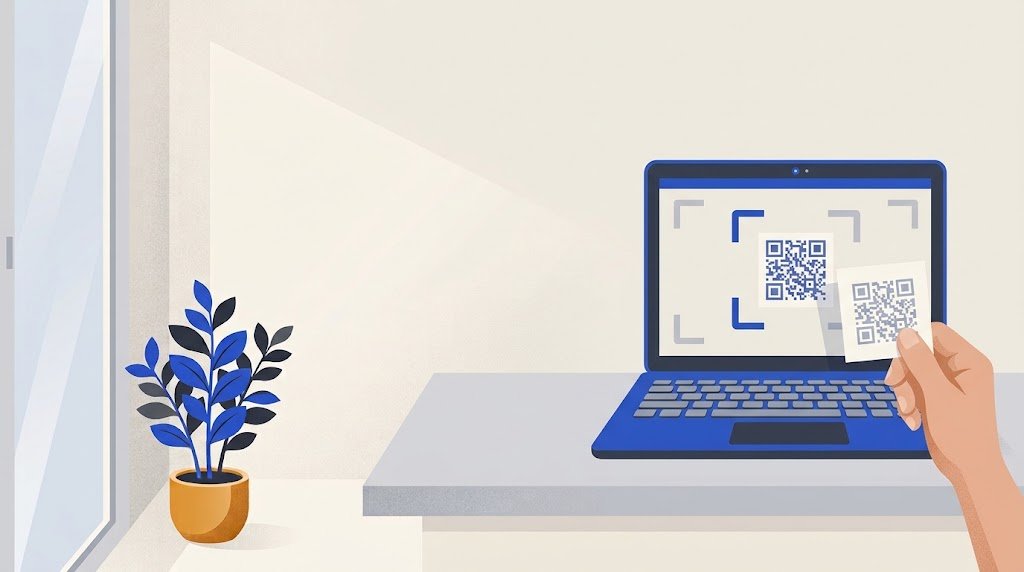
How do I scan a QR code from a screenshot or a photo?
You cannot point your camera at your own screen, so scan the picture instead:
- Android: open the screenshot in Google Photos and tap Lens (or More, then Google Lens). On a Samsung Galaxy you can also open it in Gallery and tap the Bixby Vision button.
- iPhone: open the screenshot in Photos and touch and hold the code; on recent versions of iOS a link appears. If it does not, open the Google app, tap the Lens icon and choose the screenshot from your photos.
Why is my phone not scanning the QR code?
Start with the line that matches what you see:
| What happens | What to try |
|---|---|
| Nothing at all | Check the scan setting named above for your phone, or use the Control Center scanner or the Quick Settings tile |
| The picture is blurry | Wipe the lens, hold the phone still, step back a little |
| Only part of the code is on screen | Move back until the whole square, with its white border, shows |
| Glare or shadow on the code | Tilt the phone, turn on the flashlight, or move to better light |
| The code is on another screen | Turn that screen's brightness up |
| The code scans on a friend's phone | The problem is your phone: restart it, update it, or use Google Lens |
| No phone can read it | The problem is the code itself (see the last section) |
On an iPhone, also open Settings, then Camera: if you see a switch named Scan QR Codes, make sure it is on.
Why does nothing open after I scan the code?
If the phone showed a link, the scan worked and the trouble is behind the code. Check that you have a mobile or WiFi connection. If the page still does not load, the link inside the code may be dead: the website was taken down, or the code goes through a service that stopped forwarding it. That last case happens with some editable codes; do QR codes expire? explains how to tell. Only the person who made the code can fix it, so tell the shop or the owner.
Not every code opens a web page, either. A WiFi code offers to join a network and a contact code offers to save a contact: that is normal.
Is it safe to scan any QR code?
A QR code is only a link written in squares, so treat it like a link in a message. The US Federal Trade Commission has warned that scammers stick their own codes over real ones, on parking meters for example, and send codes in emails and texts that look official.
- Read the address your phone shows before you tap it.
- Be wary of a code that arrives in a message you did not expect.
- Do not type a password or card number on a page a code opened unless you are sure who put the code there.
- Look at a code on a sign or a meter: a sticker on top of the print is a warning sign.
Why will no phone scan my QR code?
When nobody can scan a code, the cause is usually how it was made or printed. Codes read best when they are:
- Dark on light, with strong contrast. Pale colors, or light squares on a dark background, may not be read by every phone.
- Surrounded by a white margin. Do not let a border, a photo or the edge of the card touch the squares.
- Big enough for the distance people scan from: QR code size on a business card, menu or sign gives the sizes.
- Short. A long link makes a denser code with smaller squares.
- Tested on an iPhone and an Android phone before you print a whole batch.
The vCardGen QR code generator makes a plain black code on white, with its white margin, for a link or a contact, as a PNG or an SVG, with no account. The code holds your link itself, so it has no scan limit and never expires.