How to Share WiFi With a QR Code
Share your WiFi with a QR code: from your phone for one guest, or a printed sign for a shop or a rental. Steps, safety, and fixes when a scan fails.
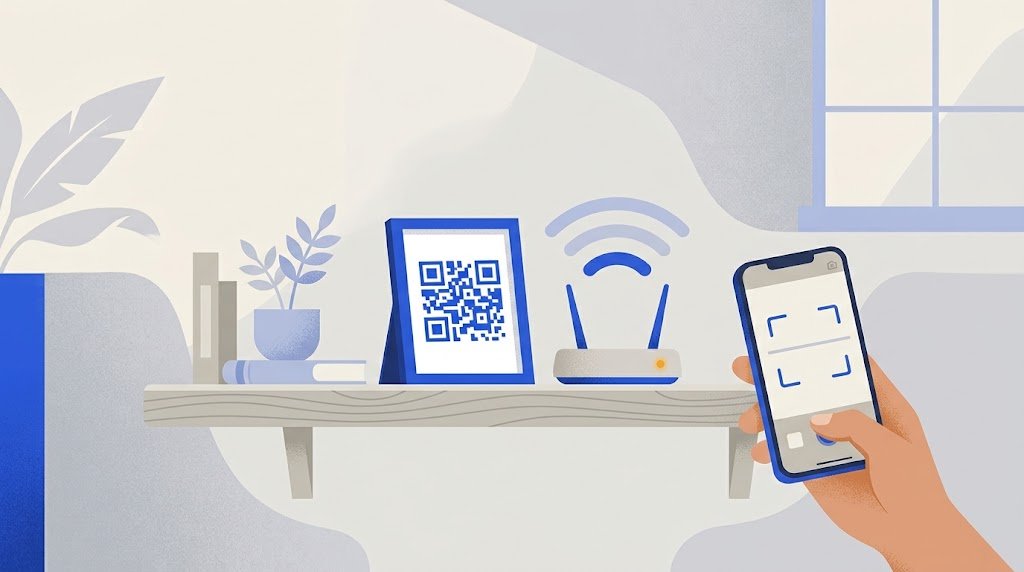
To share WiFi with a QR code, put the network name and the password into a WiFi QR code, then let people scan it with their phone camera. The phone offers to join the network, and nobody has to type the password.
There are two ways to get that code. Your phone can show one on its screen, which is fine for one friend on the sofa. Or you make one yourself and print it, which is what a shop, a waiting room or a rental needs: a sign that works when you are not there.
Which way fits your situation?
| Situation | Best way |
|---|---|
| One guest at home, now | Show the code from your phone |
| Guests who come and go | A printed code on the fridge or in the hall |
| A shop, a café, a waiting room | A printed sign for the guest network |
| A holiday rental | A printed sign, and the password in the welcome note |
How do I show a WiFi QR code from my phone?
Your phone must already be connected to the network, or have it saved.
On Android (version 10 or later):
- Open Settings, then the WiFi settings. On a Pixel this is Network & internet, then Internet. On a Samsung it is Connections, then Wi-Fi.
- Tap the network you are connected to. On a Samsung, tap the gear icon next to it.
- Tap Share, or QR code on a Samsung. The phone may ask for your fingerprint or your PIN first.
On iPhone (iOS 18 or later):
- Open the Passwords app.
- Tap Wi-Fi, then the network.
- Tap Show Network QR Code.
Your guest points their camera at your screen and taps the notice that appears. This works between an iPhone and an Android phone, in both directions.
The limit is plain: the code lives on your phone. If you are in the kitchen, at the till or in another country, nobody can scan it.
How do I make a WiFi QR code to print?
You need three things: the network name exactly as it is written, the security type, and the password.
- Find the name and the password. They are often on a label under the router, unless someone changed them.
- Open a WiFi QR code generator. The vCardGen WiFi QR code generator asks for the name, the security and the password, and needs no account. What you type stays in your browser.
- Pick the security. For almost every home or shop router today it is WPA, which covers WPA2 and WPA3. WEP is for very old routers, and "no password" is for an open network.
- Download the code as a PNG or SVG image, or print the ready-made sign: it reads "Scan to join the WiFi" with the code and the network name. The password is not printed as text.
- Scan the printed sign with a phone before you put it up.
Capitals matter. CafeLuna and cafeluna are two different names, and a space added by the keyboard at the end of a password is enough to make the code fail.
Is it safe to put my WiFi on a QR code?
A WiFi QR code is not a lock. It holds the password as plain text, and any QR reader app can show it. So treat the code like the password itself: anyone who can see the sign, or a photo of it, can join.
Three habits keep this sensible:
- Use the guest network. Many routers can run a second network for visitors, separate from the one your computers, till or cameras are on. Make the code for that one.
- Put the sign where your guests are, not in the window facing the street.
- Change the password when you need to shut people out, then print a new code.
Does the code expire, and what if I change the password?
A WiFi QR code is static: the name and the password are written in the picture itself. It does not pass through any website when it is scanned, so it has no scan limit and it never expires. It works as long as the network keeps the same name and password.
The other side of that: it cannot be edited. Change the name or the password and every printed copy stops working. Make a new code and replace the signs.
An example: a holiday rental
Leila rents out a flat. Her router has a guest network, so she turns it on, names it Leila-Guests and gives it a password of 14 characters. She makes a WiFi QR code for it, prints two signs, and puts one in a frame by the front door and one on the desk.
In the welcome note she also writes the network name and the password by hand, because a smart TV, a games console or a laptop usually needs the password typed in. Between two seasons she changes the guest password and prints the signs again. Her own network, with her own password, never appears anywhere.
A café does the same with one sign at the counter and a small one on each table.
Why does the scan not connect?
Check these in order:
- The password or the name is wrong in the code. One wrong capital is enough, and O and 0, or l, I and 1, are easy to mix up. Make the code again and type slowly.
- The password is too short. A WPA password has at least 8 characters. A shorter one cannot be right.
- The password was changed after the sign was printed.
- The phone does not read QR codes with its camera. On an iPhone, look in Settings, Camera, and turn on Scan QR Codes. On an Android phone, if the camera shows nothing, look for the QR code icon in the WiFi settings, or try Google Lens.
- The router is set to WPA3 only. Codes for WPA3-only networks are not read the same way by every phone. If your router has a mixed WPA2/WPA3 mode, try it.
- The print is too small, pale or shiny. Print the code larger, in black on white with a white margin around it, and keep it away from a lamp that reflects on it.
If one phone still refuses, the handwritten password is the fallback. That is the reason to keep it somewhere a guest can find it.