What to Put on a Digital Menu for a Café
What to put on a digital menu for a café or restaurant: what guests look for first, prices and sizes, allergens, opening hours, and what to leave out.
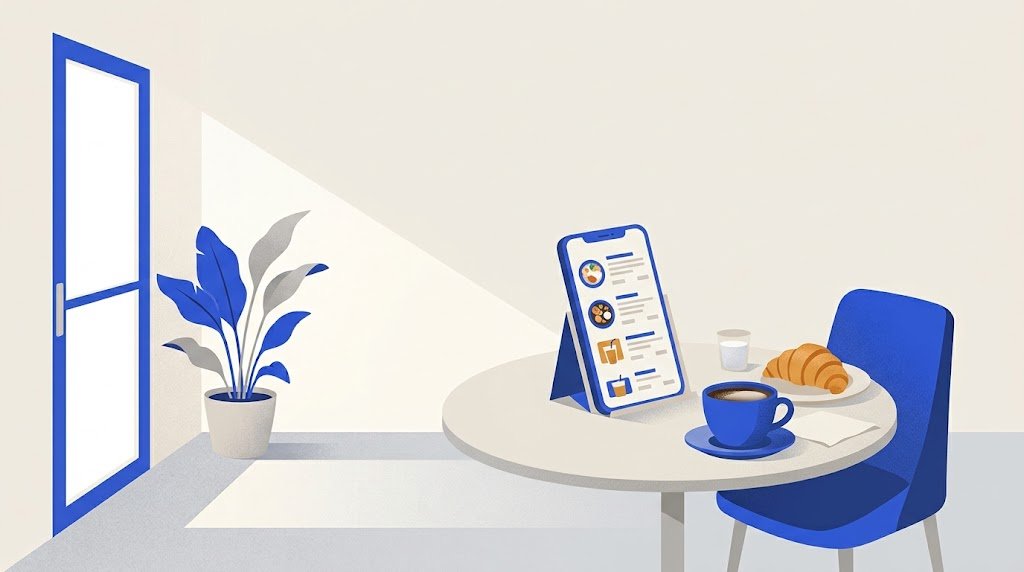
A digital menu for a café or restaurant should hold every dish and drink with its price, grouped in clear categories, with a short line that says what each item is. Then add sizes, dietary marks, allergen details, what is not available today, and the facts about the place: opening hours, address, phone number and WhatsApp.
What do customers look for first on a menu?
Picture a guest who has just scanned the code at a table. They want three answers, fast:
- What is there? The categories show them where to look: coffee, breakfast, mains, desserts.
- What does it cost? A price next to every item, with the currency.
- Can I have it? Whether it is served today, and whether it suits them: vegetarian, not spicy, no nuts.
A menu that answers those three quickly does its job. A logo and a cover photo come after: the page is read on a small screen, often while the waiter waits.
What should every digital menu include?
| What to include | Why it matters | Example |
|---|---|---|
| Categories in a sensible order | The guest jumps to what they want | Coffee, Cold drinks, Breakfast |
| A name that says what it is | "The Classic" means nothing to a newcomer | Iced latte, not House special |
| A price on every item | No price means a question to the staff | 3.50 € |
| Sizes, each with its price | Drinks often come in two or three sizes | Small 3.00 € / Large 4.00 € |
| A short description | Main ingredient and how it is made | Grilled chicken, lemon, fries |
| Dietary marks | Guests can scan the page for them | Vegetarian, Vegan, Spicy |
| Allergen details | Required in many countries | Contains: milk, nuts |
| Not available today | Saves a disappointed order | Mark it, do not delete it |
Categories: follow the way people order
In a café, start with the drinks, then the food: coffee, tea, cold drinks, breakfast, sandwiches, cakes. In a restaurant, follow the meal: starters, mains, desserts, then drinks.
Keep the list of categories short. On many digital menus the categories sit in a row at the top of the screen, and a row of twenty names is hard to scan with a thumb. Merge what belongs together.
Names and descriptions: say what is on the plate
Give each item a plain name and one line of description: the main ingredient, how it is cooked, and what comes with it. For example:
- Chicken tagine: preserved lemon, olives, served with bread
- Avocado toast: sourdough, avocado, poached egg, chili flakes
A house name can stay, as long as the description says what is in it.
Prices and sizes
Show a price for every item, in the same format everywhere, with the currency. If a drink comes in sizes, give each size its own price rather than "from 3.00".
Dietary marks and allergens
Marks such as Vegetarian, Vegan or Spicy let a guest find what suits them without reading every line.
Allergens are more than a courtesy. In the European Union and the United Kingdom, cafés and restaurants must tell customers when a dish contains any of 14 allergens, among them cereals with gluten, milk, eggs, peanuts, tree nuts, sesame, fish and crustaceans. The UK's best-practice guidance says this information may be given on paper or digitally, with another way to reach it for guests who cannot use the digital version. How the information must be shown differs from one country to another, so check the rules where you are.
A simple way to do it on a digital menu: end each description with a line such as "Contains: milk, wheat", and add a line at the bottom: "Ask our staff about allergens."
What is not available today
When a dish runs out, mark it as not available today instead of deleting it. When it is back, remove the mark: the dish, its description and its price are still there.
What details about the place should it show?
A menu link travels: guests send it to friends, or open it again at home before coming back. So give the page what someone outside needs:
- opening hours, including the days you close;
- the address, so a guest can open it in a map app;
- a phone number, and WhatsApp if you take orders or bookings there.
In a café, guests often ask for the WiFi. Do not write the password on the menu: anyone with the link can read the page. A separate code on the table does it better: see how to share WiFi with a QR code.
What should you leave off a digital menu?
- A photo or a PDF of the paper menu. The text is small on a phone, and guests have to zoom in and drag it around.
- Dark or blurry photos. A few good ones of your best-sellers do more.
- Long paragraphs. One line per dish is enough.
Example: a small café menu
Coffee
- Espresso: 2.00 €
- Cappuccino: Small 3.00 € / Large 3.80 €. Contains: milk
- Iced latte: 4.00 €. Contains: milk
Breakfast
- Cheese omelette: two eggs, cheese, toast, 6.50 €. Vegetarian. Contains: eggs, milk, wheat
- Granola bowl: yogurt, oats, honey, fresh fruit, 5.50 €. Vegetarian. Contains: milk, oats, nuts
Cold drinks
- Fresh orange juice: 3.50 €
- Mint lemonade: 3.00 €. Vegan
Opening hours: every day, 8:00 to 19:00. Ask our staff about allergens.
How do you keep a digital menu up to date?
The real gain of a digital menu is that a price or a dish can change in a minute. That only works if the QR code points to a page you can edit, so the printed code never has to change.
The free QR code menu on vCardGen works that way. You type the categories, the dishes with a description, a price or up to four sizes, the marks Vegetarian, Vegan, Spicy and New, and the place's hours, address, phone and WhatsApp. You sign in with a code sent to your email, and you can edit the menu whenever you like while the printed code stays the same. It has no separate field for allergens, so write them at the end of each description. For the steps from typing to printing, see how to make a QR code menu.