How to Make a QR Code Menu for Free
How to make a free QR code menu for a restaurant or café: three ways compared, the steps, the size to print, and whether the code can expire.
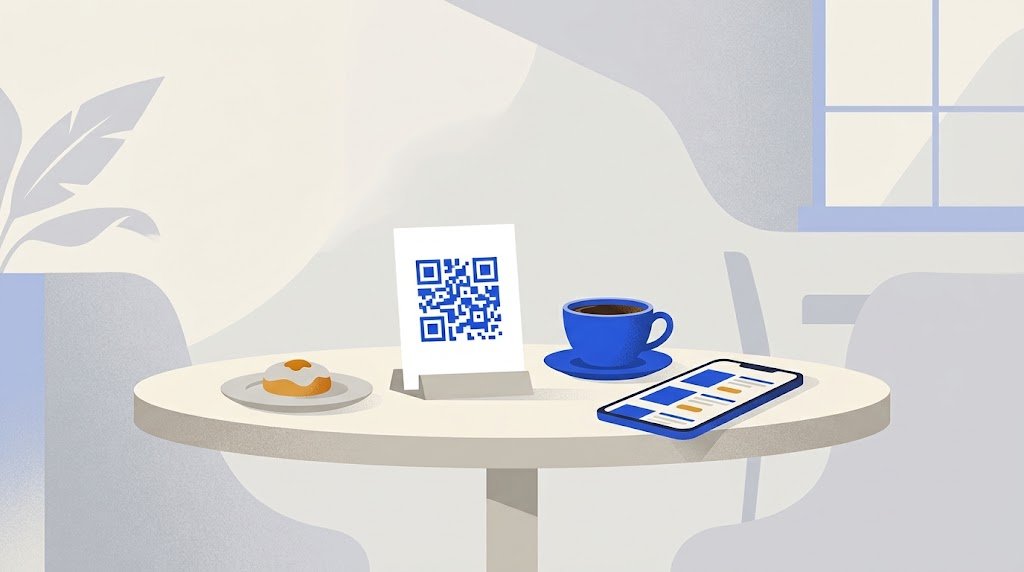
To make a QR code menu, put your menu online at a web address that will not change, turn that address into a QR code, and print the code for your tables. It can be done for free in three ways: a PDF behind a QR code, a page of your own website, or a menu page made for phones that you edit whenever a dish or a price changes.
What is a QR code menu, exactly?
A QR code does not contain your menu. It contains a web address. A guest points a phone camera at the code, taps the link that appears, and the menu opens in the browser.
While the address stays the same, the printed code keeps working, whatever you change on the page.
Guests need no app. An iPhone reads QR codes with its Camera app, and most recent Android phones do it with their camera or with Google Lens.
Which free way should you choose?
| Way | Reading on a phone | Changing a price |
|---|---|---|
| A PDF online and a QR code generator | Guests pinch and zoom | Redo the PDF and put it back at exactly the same link |
| A page of your own website and a QR code generator | Good, if the site is made for phones | Edit the page of the site |
| An online menu tool | Good: the page is made for phones | Edit the dish and save |
A PDF is fine if your menu rarely changes and you already have the file. A page of your site is fine if you keep it up to date. Otherwise a menu tool is easier to live with.
How do you make a QR code for a PDF or a page of your site?
- Get the link. For a page of your site, copy its address. For a PDF, upload the file to your website, or to a storage service with sharing set so that anyone with the link can view it.
- Open it in a private browser window, to check that it works for someone who is not you.
- Paste the link into a QR code generator, such as the vCardGen QR code generator, which needs no account.
- Download the code and print it.
On some storage services a file uploaded again gets a new link: the printed code still points to the old one, and you have to print again. Check how yours behaves before you print.
How do you make a menu page for phones?
Here is how it goes with the free QR code menu on vCardGen.
- Say what kind of place you run. Restaurant, café, bakery, juice bar or snack bar. You get example categories to rename, move or delete, or you start from scratch.
- Describe the place. Its name, one of four looks and a color, and a short web address for the menu. You can add a street address, a phone number, WhatsApp and opening hours.
- Type your dishes. A name, a short description and a price, in the currency you write. A dish or a drink can have up to four sizes, each with its price, and can be marked vegetarian, vegan, spicy or new.
- Put it online. Type your email address and enter the 8-digit code you receive. There is no password, and the same email lets you edit the menu later.
- Download the QR code and print it. It comes as a PNG or an SVG file, and an SVG stays sharp at any size.
Photos are added once the menu is online: one at the top of the page and one per dish, up to 60 in all. A menu holds up to 30 categories and 300 dishes, in the language you want. One written in Arabic or Hebrew reads from right to left.
For example, a café with twelve tables types 25 items, with three sizes for each coffee, and prints twelve small cards. In summer the owner adds iced drinks and changes three prices. One morning the croissants run out, and she marks them "Not available today". The cards never change, and her account page shows how many times the code was scanned.
Good to know: this menu is reached by its code or its link. It is not listed by search engines.
Will the QR code expire or stop working?
The code itself does not. A QR code that holds an address directly is only that address drawn as a pattern: it has no expiry date and no limit on scans. It stops working only if the page at that address goes away.
Some services put an address of their own in the code, which then sends guests on to yours. Such a code works only as long as that service keeps it active. Before you print, scan your code and read the link it shows: you will see whose address it holds.
A vCardGen menu code holds the address of the menu page itself, with nothing in between, and that address never changes. The code keeps working for as long as the menu is online.
How big should the printed code be?
A common rule of thumb: the code should be at least a tenth as wide as the distance it is scanned from.
- On a table, common advice is not to go below 2 cm (0.8 in). 3 cm or more is a safer choice.
- On a window or a wall, a code read from 1 to 2 meters away should be 10 to 20 cm wide.
- Leave a white margin all around the code.
- Print dark on light, never the reverse, and avoid very glossy surfaces: reflections get in the way.
- Write a few words next to it, such as "Scan to see the menu".
Before you print them all, print one and scan it with two different phones, in the light your guests will have.
What do people forget?
- The connection. A menu is a web page: it opens only if the phone is online. Where reception is poor, a WiFi QR code next to the menu code lets guests join your network without typing a password.
- Paper menus. Keep a few for guests whose phone is flat, or who simply prefer paper.
- Allergens. Marks such as vegetarian or spicy are not allergen information, and the rules differ from one country to another. Check the ones that apply to you. The vCardGen menu has no allergen marks: write allergens in the dish's description.