LinkedIn QR code: find yours, scan one, or make your own
In the LinkedIn app, tap the QR code icon in the search bar, then My code. How to scan one, and how to make a printable code from your profile URL.
To find your LinkedIn QR code, open the LinkedIn app, tap the QR code icon in the search bar at the top of the home screen, then tap My code. For a code to print on a business card or a CV, copy your profile URL and turn it into a QR code with a free generator: you get a clean PNG or SVG file.
Both open your profile. The app's code is handy on your phone; the one you make yourself is better on paper.
How do I find my LinkedIn QR code?
Every member has their own code in the LinkedIn mobile app. Update the app first, then follow the steps from LinkedIn Help.
On an iPhone
- Open the LinkedIn app.
- Tap the QR code icon in the search bar at the top of the home screen.
- Tap the My code tab.
- Tap Share my code to send it by message, email or another app, or Save to photos to keep a copy.
On Android
- Open the LinkedIn app and tap the QR code icon in the search bar.
- Tap the MY CODE tab.
- Tap SAVE TO GALLERY to keep a copy in your photos.
On Android, LinkedIn's help page lists sharing the code by message or email as coming soon, so save it to your gallery and send the picture from there. Menus change between versions of the app, so your screen may look a little different.
On a computer?
LinkedIn's help only describes the QR code in the mobile app. On a computer, the simplest way is to make a code from your profile URL, as shown below.
How do I scan someone's LinkedIn QR code?
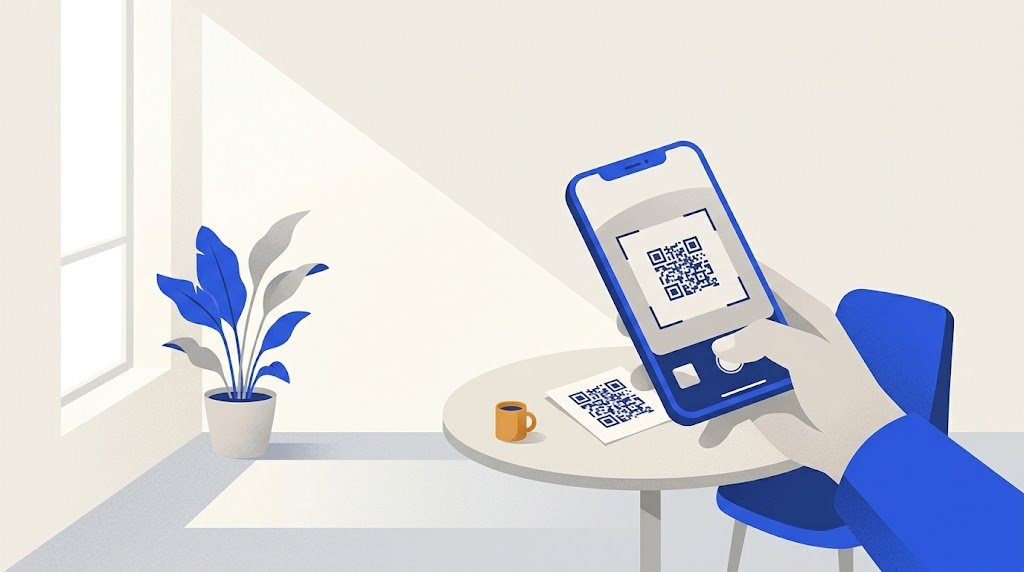
In the LinkedIn app, tap the QR code icon in the search bar, then the Scan tab (SCAN on Android). Hold your phone over the other person's code and their profile opens; from there you can connect. On Android, the app first asks you to allow camera access.
If they sent you their code as a picture, use Scan from photos on an iPhone, or ADD CODE FROM GALLERY on Android. A code made from a profile URL is an ordinary link code, so the phone's camera opens it too: our guide on how to scan a QR code covers each phone.
How do I make my own LinkedIn QR code?
You need your profile URL and a QR code generator. It takes two minutes.
First, set a custom profile URL
Your profile URL looks like https://www.linkedin.com/in/yourname/. If yours ends with a string of random letters and digits, give it a clean ending first: it is easier to read on paper and makes a simpler code. LinkedIn's steps on a computer:
- Click Me at the top of the home page, then your profile.
- Click the edit icon next to Public profile & URL, in the right column.
- Under Edit your custom URL, click the edit icon, type the new ending and click Save.
The ending must be 3 to 100 characters, with no spaces, symbols or the word "LinkedIn". You can change it up to five times in six months. Settle on it before you print anything, because a printed code holds the address as it was.
Then make the code
- Copy your profile URL. On a computer it is in Public profile & URL. Paste it into a browser to check that it opens your profile.
- Open the vCardGen QR code generator, keep Link selected and paste your URL.
- Download it. Take the SVG for print, because it stays sharp at any size; the PNG is fine for slides and email.
- Test it with your phone, and with a second phone, before you print.
There is no account to create, and the code is drawn in your browser. It holds your LinkedIn address itself, with no service in between, so it has no scan limit and does not expire. More on that in do QR codes expire?
App code or your own code: which is better?
| Code from the LinkedIn app | Code made from your URL | |
|---|---|---|
| Where you get it | My code in the app | Any QR code generator |
| Get it on a computer | Not in LinkedIn's help: phone app only | Yes, in any browser |
| File | A picture saved from the app | PNG or SVG, ready for a designer |
| Best for | Showing your phone at an event | Business cards, CVs, badges, slides |
At an event, opening My code in the app is the quickest. For anything printed, your own code from your URL gives you a file you control.
Where should I put my LinkedIn QR code?
- Business card. On the back, at least 2 cm wide, with a white margin. Our guide to QR code size on a business card explains why.
- CV or resume. In the header next to your email, small but scannable, about 2 cm. Keep the URL written out too, for those who read the CV on a screen.
- Event badge. Recruiters and other visitors can scan it without asking you to spell your name.
- Slides. On the last slide, with a line like "Connect with me on LinkedIn", and leave it up during questions.
- Email signature. A small PNG under your name, beside the written link.
Always add a few words beside the code, such as "Scan to connect on LinkedIn", so people know where it leads before they scan.
What if you also want people to call or message you?
A LinkedIn code opens one thing: your profile. To connect, the other person needs LinkedIn, and if they want your phone number they still have to ask for it.
A digital business card puts everything behind one scan: your photo, a call button, WhatsApp, email, your website and a LinkedIn row. A Save contact button adds you to their phone's contacts, with your photo. On vCardGen you can create a card for free and paste your LinkedIn URL into it. You can change any detail later, and the printed code stays the same. Our guide on how to share a digital business card shows every way to pass it on.
A simple rule: the LinkedIn code where people meet you as a professional profile, such as a CV or a talk; the card where they need to reach you, such as a fair, a client meeting or a shop counter.
Checklist
- Your custom profile URL is set, and you will not change it soon.
- You found My code in the app for events.
- You made a code from your URL, downloaded the SVG for print, and tested it with two phones.
- The code is at least 2 cm wide, with a white margin and a line saying what it opens.
- If you want calls and messages too, you use a digital business card with a LinkedIn row.