WiFi QR Code for Airbnb: Set It Up for Guests
How to set up a WiFi QR code for an Airbnb or holiday rental: a guest network, a printed sign, a backup for TVs and laptops, and what to do between stays.
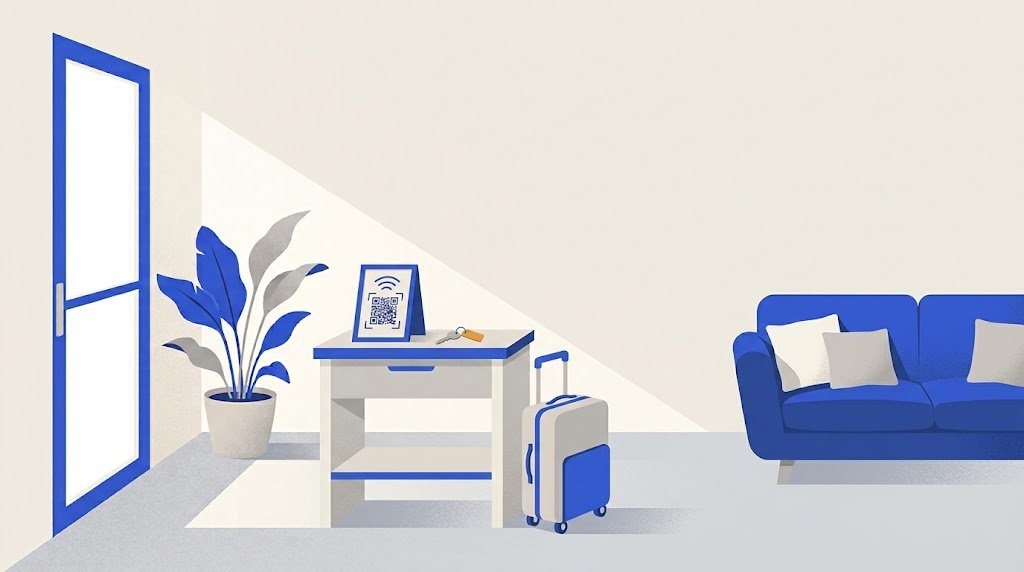
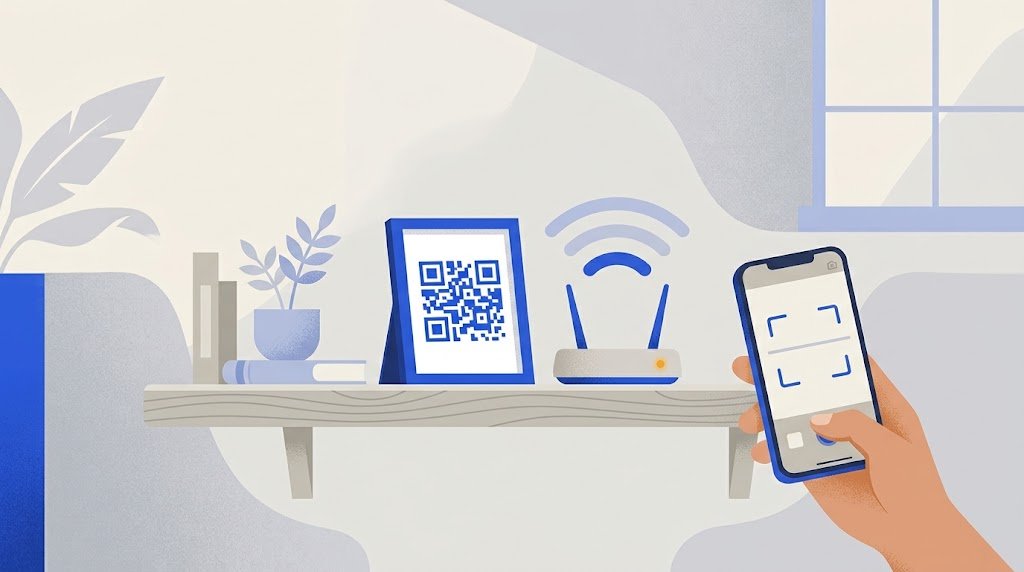
A WiFi QR code for an Airbnb or a holiday rental is a printed code that holds your guest network's name and password: guests scan it with their phone camera and join without typing anything. Make it for a guest network, put the network name and password in writing too, and test it before the first arrival.
A rental adds problems a living room does not have: you are not there when a scan fails, the TV and the laptop cannot scan, and the password may change between stays.
What does a WiFi QR code hold?
The network name, the security type and the password, nothing else. A phone that reads it offers to join that network. The code does not go through a website when it is scanned, so it does not stop working after a number of scans and it has no end date. It works as long as the network keeps the same name and password.
It also cannot be edited: change the password and you print a new code. For the full picture on how this works on iPhone and Android, see How to share WiFi with a QR code.
Should I use a guest network for my rental?
Yes, if your router can run one. Many routers can broadcast a second network, separate from the main one: your own devices stay on the main network, guests get the second. Changing the guest password then leaves your own devices connected. If your router has no guest network, use the main one with a password you use nowhere else.
Anyone who sees the sign, or a photo of it, can join, and a QR reader app shows the password as plain text. So print a code only for a network you are happy to hand to strangers.
Give the guest network a clear name, such as SeaView-Guests, and a password of at least 12 characters. A WPA password must have at least 8, and a longer one is no burden when most guests scan rather than type it. Leave out look-alike characters such as O and 0, or l, I and 1, for the guests who do type it.
How do I set it up, step by step?
- Turn on the guest network in your router's settings or app, and write down its exact name and password. Capitals count.
- Make the code. In the WiFi QR code generator, type the name, choose the security (WPA for almost every router today, which covers WPA2 and WPA3), and type the password. It needs no account, and what you type stays in your browser.
- Save the file. Download the code as PNG or SVG and keep it with your rental papers. The site does not keep a copy, so this file is what you print again later.
- Print the sign. The ready-made sign reads "Scan to join the WiFi" with the code and the network name. The password is not printed on it as text.
- Test it with a phone that has never joined this network, standing where a guest would stand. A phone that already knows the network proves nothing. If you can, try one iPhone and one Android.
- Write the password down in the welcome book and in your booking messages.
Where should the sign go?
Where a guest looks in the first ten minutes, and always inside.
| Place | Why |
|---|---|
| By the front door or in the hall | The first thing guests see with bags in hand |
| On the desk or by the TV | Where laptops and streaming come up |
| Inside the welcome book | The place guests look for everything else |
| Not in a window | Anyone outside could scan it |
| Not in the listing photos | A sharp code in a photo online scans like the real one |
Print it in black on white with a white margin, and avoid glossy paper under a bright lamp: glare can stop a camera reading the code.
What about TVs, laptops and consoles?
A smart TV, a games console or most laptops cannot scan the code, so the guest needs the password as text. Keep it in two places:
- In the welcome book, next to the network name, in a clear font.
- In your booking messages. On Airbnb, the listing's Arrival guide has a field for the WiFi password, and guests receive that information after they book (Airbnb's host guide). Other booking sites and your own check-in message can carry the same line.
Do I need a new code for every guest?
No. The code stays valid until you change the password. A simple rule: keep the same guest password for a season, and change it between seasons or right after a stay that went badly.
When you do change it:
- Change the guest network password in the router.
- Make a new code in the generator and save the file.
- Replace every printed sign, and update the welcome book and the Arrival guide.
Miss one and a guest will try an old password.
An example: a two-bedroom flat by the sea
Sam rents a flat for weekends. He turns on a guest network, SeaView-Guests, with a 14-character password of plain letters and numbers, makes the code, saves the PNG and prints three signs: by the door, on the desk, in the welcome book.
The network name and password go in the Arrival guide and, under the line "For the TV and laptops", in the welcome book. At the end of the summer he changes the password, makes and prints the signs again, and updates both text copies the same day.
Why does a guest's scan not connect?
- A typo in the code. Remake it, typing the name and password slowly.
- The password changed and an old sign is still up somewhere.
- The router is set to WPA3 only. Older phones cannot join such a network at all, and some phones expect a different code for it. A mixed WPA2/WPA3 mode lets every guest in.
- The camera does not react. On an iPhone, use the Photo mode and check that code scanning is on in Settings, then Camera. On Android, try Google Lens.
- The print is too small, pale or shiny. Print it larger, in plain black on white.
If none of this helps, the written password gets the guest online. That is why it is there.