Google review QR code sign: what to print
What to print on a Google review QR code sign or stand: the words, the code size, the stand, where to put it, and what Google says you must not write.
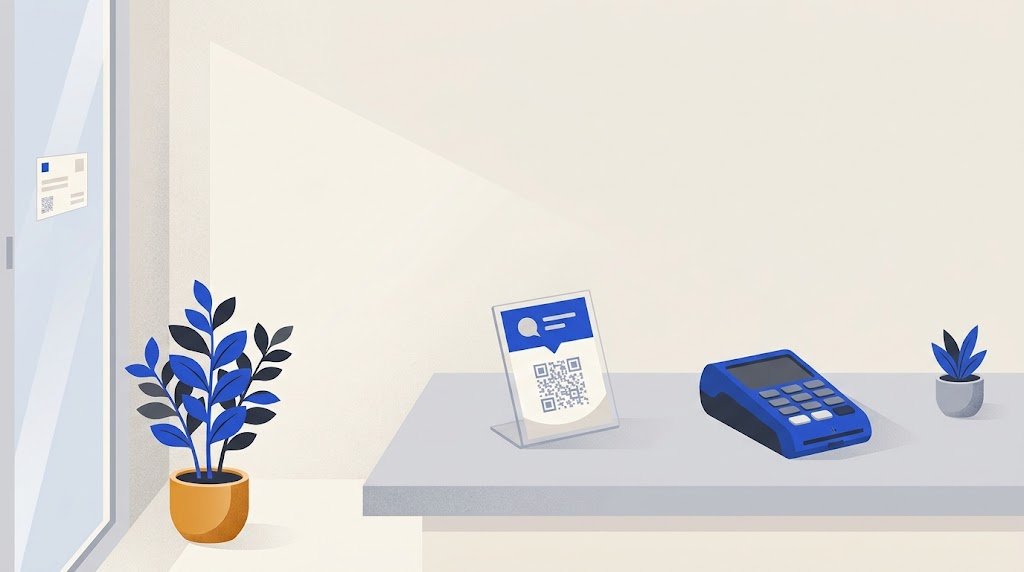
A Google review QR code sign needs four things: your business name, one short line such as "Scan to leave us a Google review", the code itself at a size that fits the distance, and a line that says how to scan. Put it where customers pause with a free hand, such as the counter by the card machine, the table or the waiting area, and test it with two phones before you print copies.
What should a Google review sign say?
Short, neutral words that suit every customer, happy or not. From top to bottom:
- Your business name, and your logo if you have one, so people know whose code it is.
- One line with a verb and the word Google: "Scan to leave us a Google review." Naming Google says where the review goes.
- The QR code, with a clear white margin all around it.
- How to do it: "Point your phone's camera at the code."
- A short web address, if you have one, for anyone who cannot scan.
Leave out social icons, opening hours and service lists: they compete with the code for a quick glance.
What must a review sign not say?
Google's policy for content on Maps sets the limits. Businesses may not offer payment, discounts, free goods or free services in exchange for a review. They may not selectively ask for positive reviews or discourage negative ones. They should not require or pressure people to leave a review while on the premises, or ask for specific content in it, such as the name of a member of staff.
On a sign, that rules out some common lines:
| Avoid | Write instead |
|---|---|
| "Loved it? Give us 5 stars!" | "Scan to leave us a Google review" |
| "10% off your next visit for a review" | "Your review helps other customers choose" |
| "Mention Sarah in your review" | "Tell us how it went" |
| "Not happy? Talk to us before you post" | "If you have a minute, we would value a review" |
You can thank people. You cannot reward them, sort them or tell them what to write.
If a customer asks: posting a review needs a Google account, reviews cannot be anonymous, and each one shows the name on the writer's profile.
How big should the QR code be on a sign?
A rule often given for print is that people scan from about ten times the width of the code. That gives these minimums for a code printed dark on white:
- Stand on a table, scanned from about 30 cm: 3 cm.
- Stand on a counter, about 50 cm: 5 cm.
- Poster on a wall or door, about 1 m: 10 cm.
- Sticker in a shop window, read from the pavement at about 2 m: 20 cm.
Go larger in dim light. Keep the white margin free of frames and text, and use an SVG file so the code stays sharp. Our QR code size guide explains the margin and the ratio.
Which stand or format should I use?
- Counter stand, a small acrylic block or easel frame: for most shops, next to the till or the card machine, where people wait for their receipt.
- Table tent: for cafés and restaurants, read while guests wait for the bill. Print the code on both sides so it faces every seat.
- Wall or door poster: for a waiting room, a salon or a practice. Hang it at eye level, where people sit or stand still.
- Window sticker: the weakest place, since passers-by have not been served yet and it is read through glass and reflections. If you use one, test it from outside in daylight.
- Small card: in the bag, the box or with the invoice, for a craftsman who works at the customer's home.
Under a lamp, glossy acrylic or laminate can throw a reflection across the code; a matte sheet inside the stand helps.
An example: a small hair salon
A salon with a reception desk and a bench for waiting clients:
- a counter stand with a 5 cm code beside the card machine, where every client pays;
- a poster with a 10 cm code above the bench, at eye level;
- nothing on the front door, because people walking in have not been served yet.
At the desk, the same sentence goes to every client: "If you have a minute, a Google review helps us. The code is right here." The sign is the reminder; the sentence is the ask. Asking everyone, happy or not, keeps it within Google's rule against asking only for positive reviews.
Where do I get the code for the sign?
Google gives you one in your Business Profile: on a computer, open your profile, choose Read reviews, then Get more reviews, and save the QR code image. Google's help says these codes can only be made in a computer browser, not on a phone. You get the code as an image; the sign around it is yours to make. Our guide on getting more Google reviews with a QR code covers the link in more depth.
The other way is a review page in front of Google. The vCardGen Google review page is free, and every customer sees the same two buttons: Leave a Google review, which opens your own Google review link, and Tell the owner privately, a short message to you. Putting the page online needs a sign-in with a code sent to your email. From your account, Print a sign gives a ready sheet in black on white: your name and logo at the top, "Scan to leave us a review", the code at 11 cm, a line on how to scan, and the page's address for anyone who cannot scan. Scans are counted in your account. You can change the page later, even the Google link, and the printed code stays the same.
How do I test the sign before printing copies?
- Print one copy at 100% scale, not "fit to page".
- Put it where it will stand, in its real light.
- Scan it with two or three phones, an older one among them, from where customers will be.
- Check that it opens your own business, the review box or your review page, not a search page or a map.
If all four pass, print the rest.