Share a contact by QR code on iPhone and Android
How to share a contact with a QR code: what an iPhone and a Samsung phone can do on their own, and how to make one code that any phone can scan.
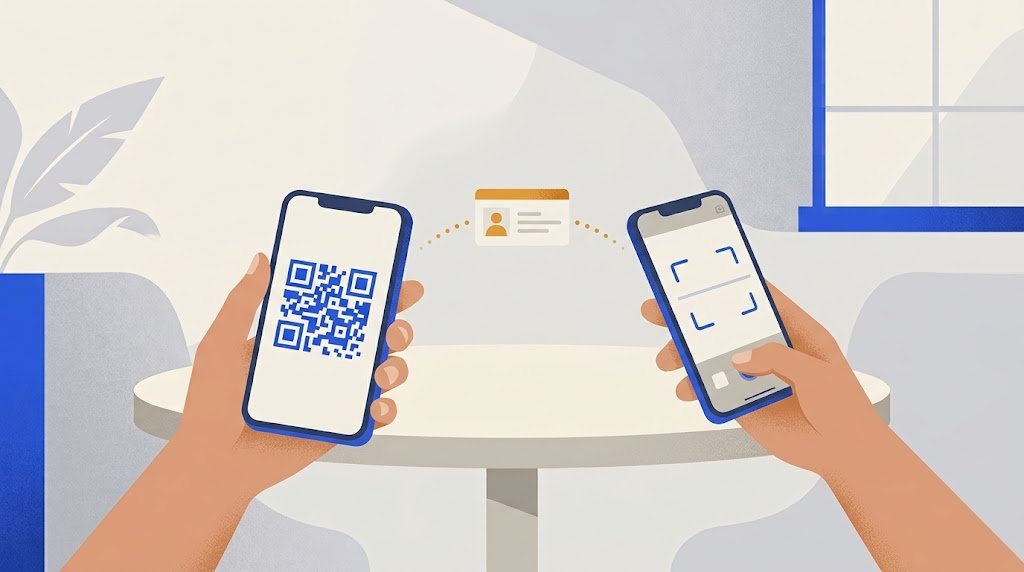
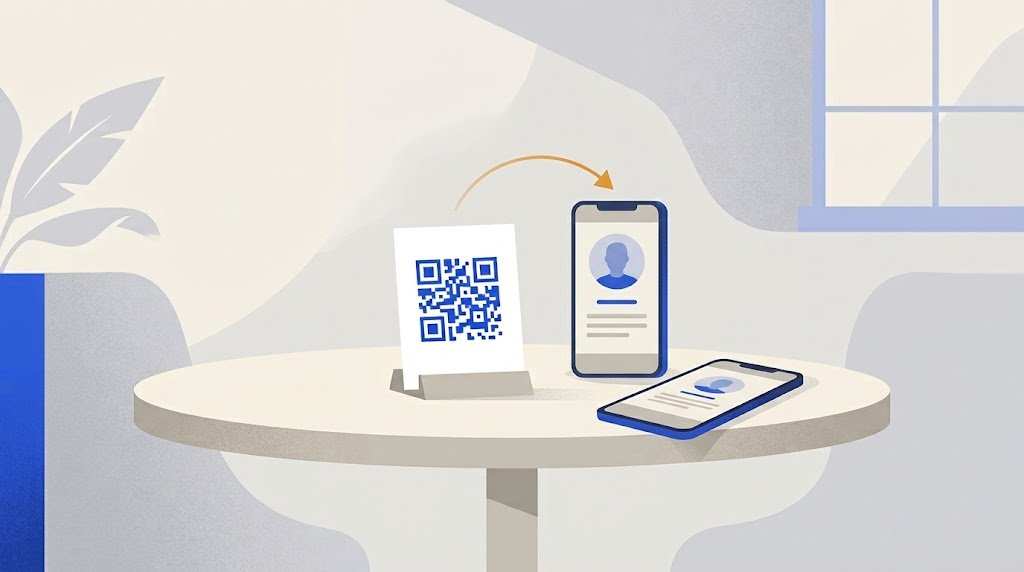
To share a contact with a QR code, put the details into a contact QR code (a vCard code) and show it on your screen or print it. The other person scans it with their phone camera and saves the contact without typing a thing.
An iPhone has no QR code button for contacts; a Samsung Galaxy has one in its Contacts app. For other phones, and for a code that works the same everywhere, you make the code once and keep it as a picture.
Which way fits your phone?
| Your phone | Built-in contact QR code | What to do |
|---|---|---|
| iPhone | No | Make a contact QR code and keep it in Photos |
| Samsung Galaxy | Yes, in Contacts | Use it, or make your own code |
| Other Android phones | Depends on the brand | Look in the contact's menu, else make your own code |
The person who scans does not need the same phone as you.
Can an iPhone show a contact as a QR code?
Not on its own. In the Contacts app, Share Contact lets you pick the fields to send, then sends the card through Messages, Mail, AirDrop or another app. There is no QR code among the choices.
iPhones also have NameDrop: hold your iPhone a few centimetres above another person's iPhone or Apple Watch, and you can swap contact details. Apple says it needs iOS 17.1 or watchOS 10.1 or later on both devices. It does not help when the other person has an Android phone, or when you want a code on a desk, a badge or a business card.
How do I share a contact by QR code on Android?
On a Samsung Galaxy, the Contacts app makes the code for you:
- Open Contacts and tap the contact. For your own details, open your profile at the top of the list.
- Tap More (the three dots) at the bottom, then QR code. On your own profile, the QR code icon may sit directly in the bottom bar.
- Show the screen to the other person.
To scan it, the other person can use their camera, or on a Galaxy open Contacts, tap More, then Scan QR code.
On other Android phones, look in the contact's menu (the three dots). If there is no QR code there, Share still sends the contact as a .vcf file, and you can make your own code as below.
How do I make a contact QR code that works on any phone?
- Open the vCardGen vCard generator. It asks for the first and last name, phone, email, company, job title, website and address, and needs no account.
- Fill in only what you want to share. Each field makes the code denser.
- Download the QR code as a PNG image to keep on your phone, or as an SVG file for a printer.
- Scan it with another phone before you use it, and check that the name and the number come out right.
On your phone, add the image to your favourites in Photos or Gallery, so it is two taps away. You can also print it on the back of a business card or on a badge.
The same page gives you a contact file (.vcf) to send by message or email when the person is not standing next to you. The file can carry a photo; the QR code cannot, because a QR code holds under 3,000 bytes, far too little for a picture.
What happens when someone scans the code?
The code holds the contact itself, not a link, so the person scanning needs no internet connection. On an iPhone, they point the Camera app at the code and tap the button that appears; a contact preview opens, where they can create a new contact. On many Android phones from Android 9 on, the camera reads the code too; on others, Google Lens does.
The phone shows the details first, and nothing is saved without a tap.
What should I leave out of the code?
Anyone who sees the code can read what is in it, including someone who photographs it. So treat a printed code like a printed card:
- Leave out your home address unless you would print it anyway.
- Use a work number and a work email on a code that hangs in a shop or an office.
- Keep it short. A name, a phone and an email make a simple code that scans easily, even small.
What if my number or my job changes?
A contact QR code is static: the details are written in the pattern itself. It has no scan limit and never expires, as explained in do QR codes expire?. But it cannot be edited. If your number changes, make a new code and replace the image on your phone and any printed copies.
If your details change often, a digital business card is the other way: the code leads to your card page, which has a Save contact button. You can edit the card for ever while the printed code stays the same. Putting it online needs a sign-in with a code sent to your email.
An example: a plumber
Karim, a plumber, is often asked for his number at the end of a job. He makes a contact QR code with his name, his work phone and his email, and leaves out his home address. He saves the image in his phone's favourites and prints the same code on the back of his business cards.
When a customer asks, he opens the picture, and the customer scans it with an iPhone or an Android camera.
Why does the scan not save the contact?
- The camera does not react. The code may be too small, blurred or under a reflection. Show it larger, turn up the screen brightness and hold still. On an iPhone, try the Scan Code control in Control Center; on Android, try Google Lens.
- The phone opens a website instead of a contact. The code holds a link, not a vCard. Make it again with a vCard generator.
- A detail is wrong or missing. The code holds exactly what was typed, typos included, so fix the detail and make a new code.
- The number does not work from abroad. Write it in international format, with the country code (+44 for the UK, +1 for the US).